Installation: GCC
These instructions describe the steps required to download and install GCC on Windows XP. GCC is installed and runs in the MinGW framework.
MinGW (Minimalist GNU for Windows) provides a compiler and utilities based on GCC. The package includes all components required to compile and link code to be run on Windows platforms. Programs compiled using MinGW generally use Microsoft runtime libraries distributed with the Windows operating system. Since these libraries are not distributed using the General Public License (GPL), there is no obligation to distribute source code with programs compiled unless a GPL library is used in the programs.
Download the setup program from the MinGW website.
In a web browser navigate to http://www.mingw.org/download.shtml.
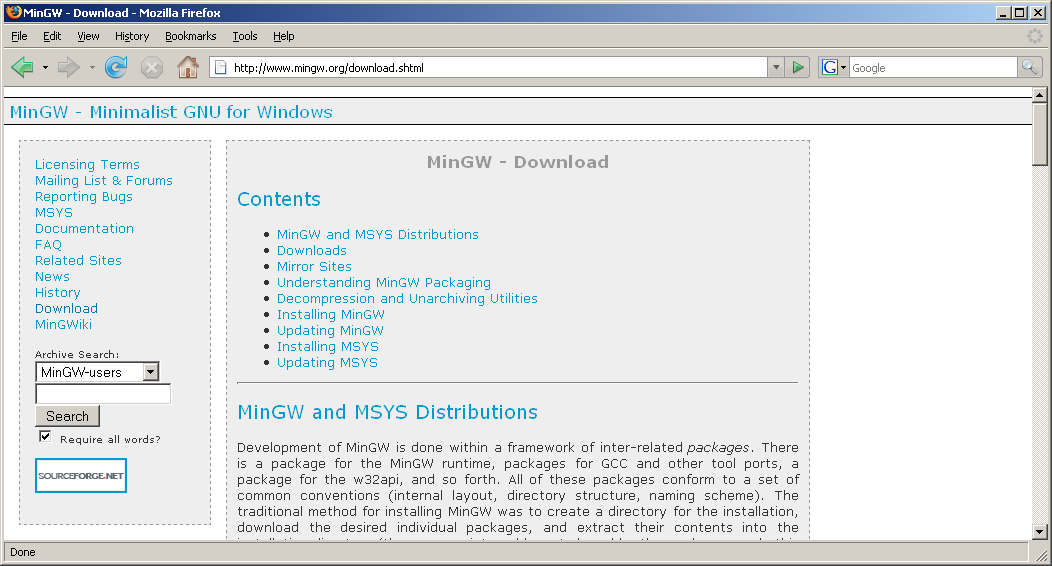
Click the Downloads link.
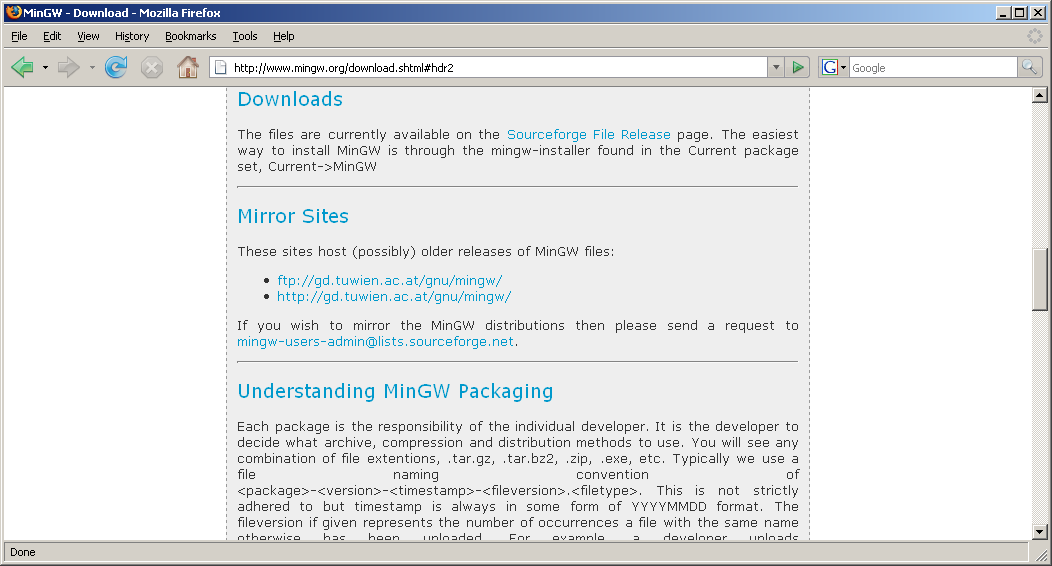
From the Downloads section click the link entitled Sourceforge File Release.
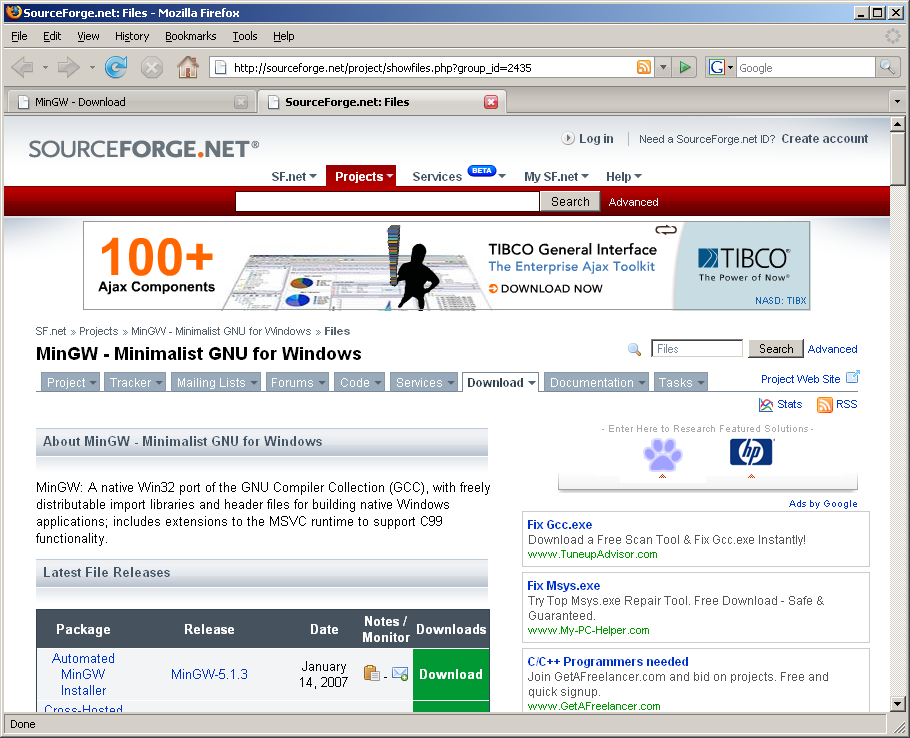
From the SourceForge site click the Download icon for the Automated MinGW Installer package.

Click the MinGW-5.1.3.exe link.
The installation file, named MinGW-5.1.3.exe, will start to download. Note the directory MinGW-5.1.3.exe is downloaded to.
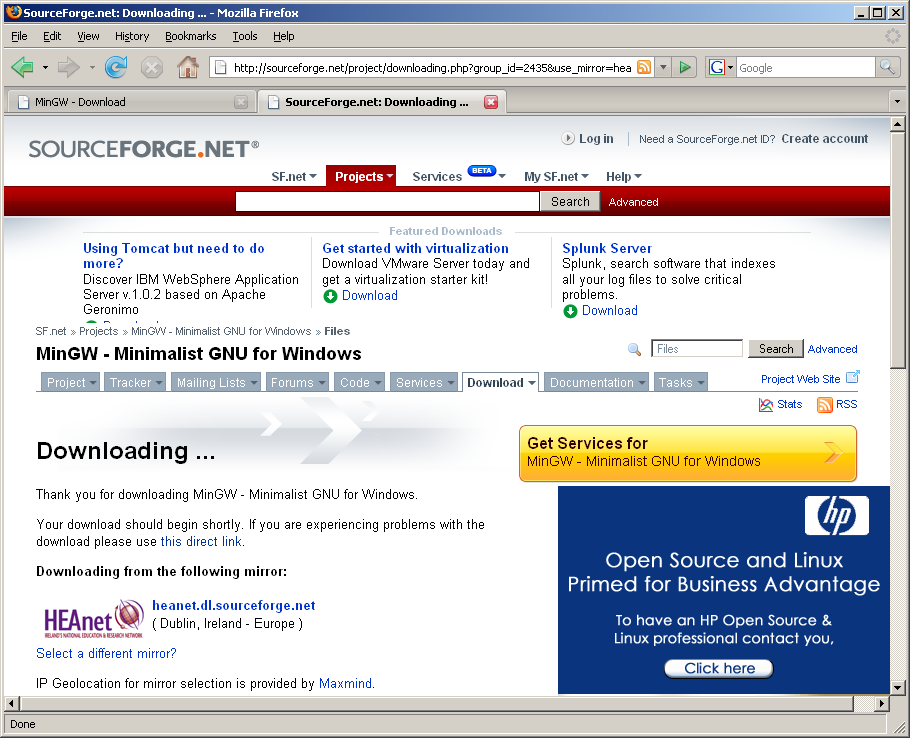
Download the MinGW components
Run MinGW-5.1.3.exe.
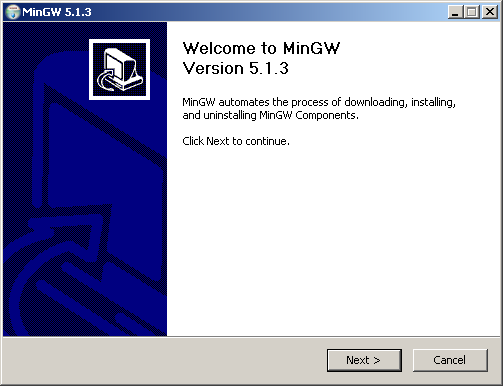
Click the Next button.
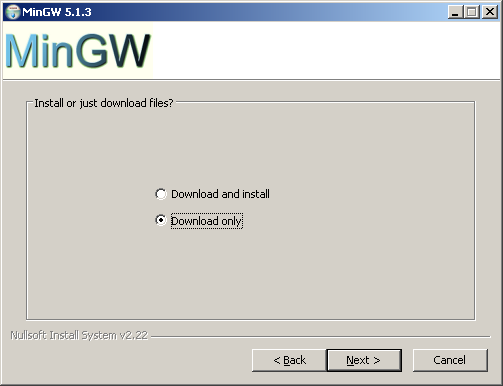
When asked whether to install or just download files, select Download only and click the Next button. This will download the MinGW files, which can then be kept to facilitate installation again at a later time without having perform a download again.
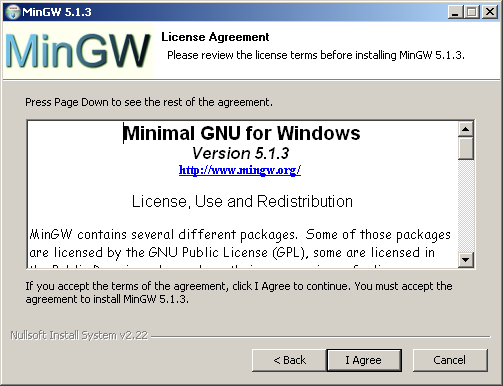
MinGW is released under the GNU General Public License, (GPL), which allows users to obtain and modify the compiler source code. If this is done, any changes made must also be released under the GPL. However, programs compiled using MinGW do not normally link with GPL libraries. As long as GPL libraries are not linked into programs distributed, the programs compiled using MinGW do not need to be released under the GPL and may be distributed in any way desired with or without the source code.
Agree to the terms by clicking I Agree.
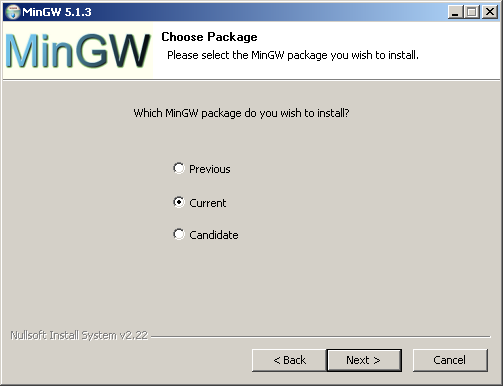
When asked which package to install, select Current and click Next.
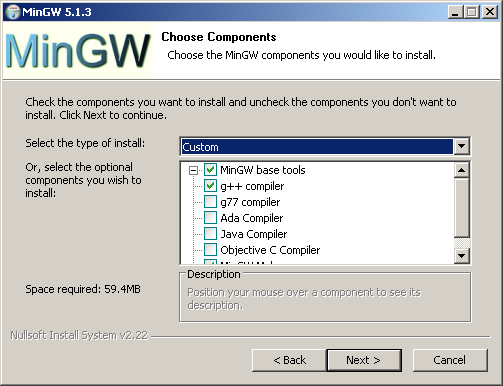
From the choice of components select MinGW base tools, g++ compiler and MinGW Make. These are the components required to compile programs with GCC C++. Additional components can also be installed if desired. Take a note of the components selected as they will need to be selected again during the installation.
Click Next.
The selected components are downloaded.
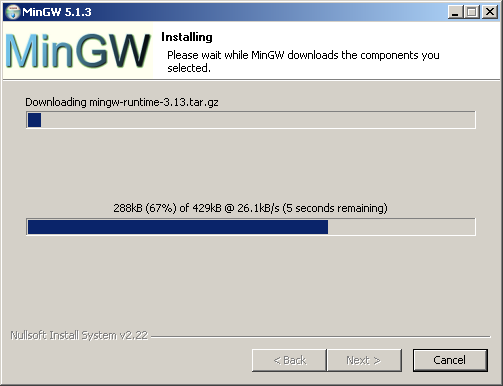
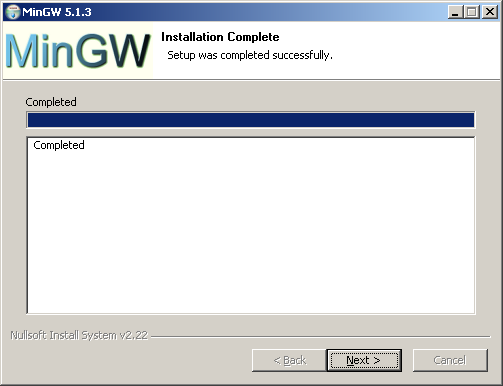
When installation is complete click Next.
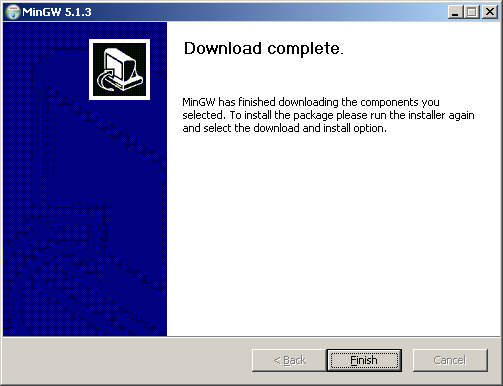
The installation program confirms that download is complete. Click Finish.
Install MinGW.
Run MinGW-5.1.3.exe again.
Click the Next button.
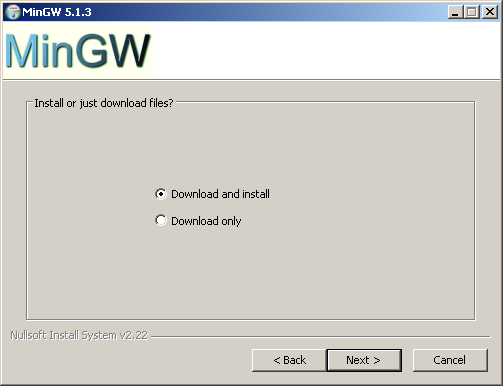
When asked whether to install or just download files, select Download and install and click the Next button. This will install MinGW using the components downloaded previously.
Agree to the terms by clicking I Agree.
When asked which package to install, select Current and click Next.
From the choice of components select MinGW base tools, g++ compiler, MinGW Make and any additional components desired. If any components are selected that were not selected during the component download they will be downloaded at this point.
Click Next.
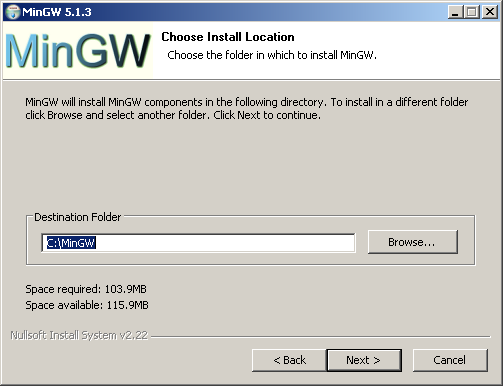
Select the destination directory to install MinGW in and click Next. The directory should not contain spaces. Note the directory selected: later in the installation it will be referred to as [MinGW directory].
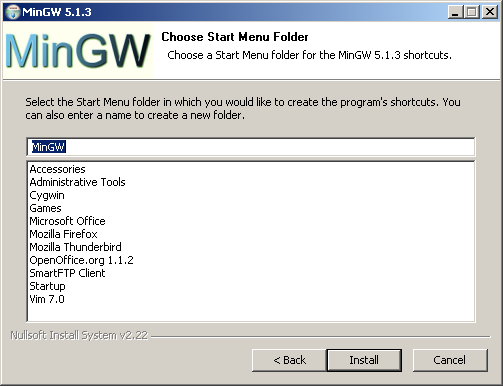
Select the name for the Start Menu folder to contain the program's shortcuts and click Install.
The components are displayed as they are installed.
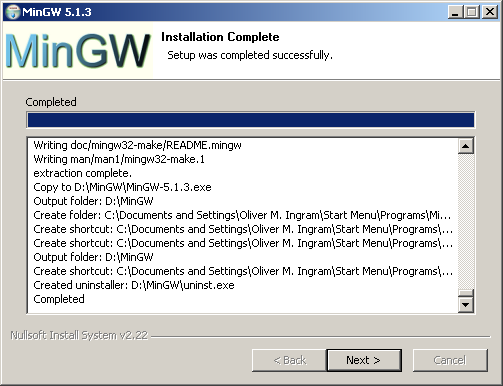
Click Next.
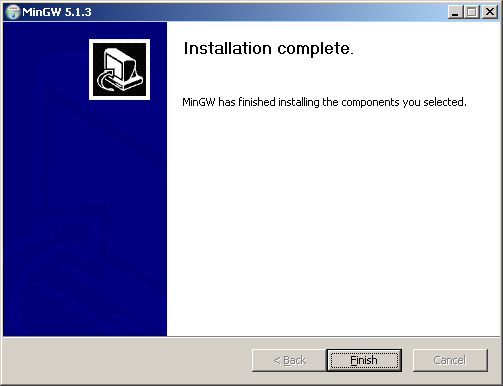
The installation program confirms that download is complete. Click Fiish.
Complete the configuration
Update the Path environment variable.
Click the Start button.
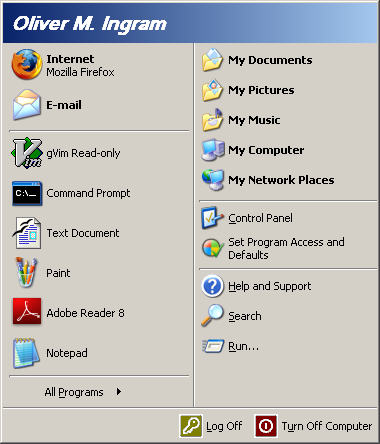
Right-click My Computer.
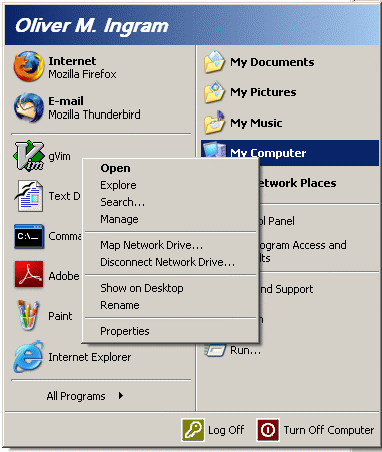
Select Properties.
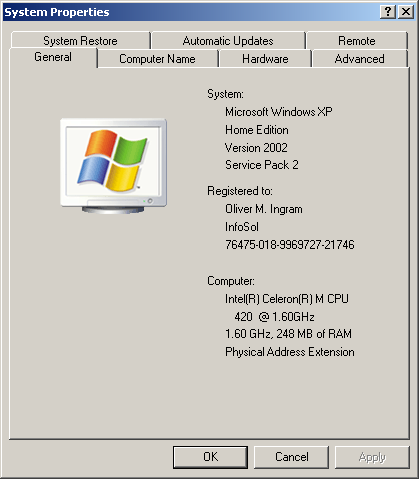
Click the Advanced tab.
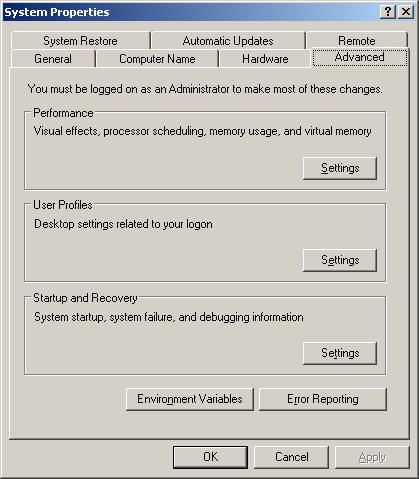
Click the Environment Variables button.
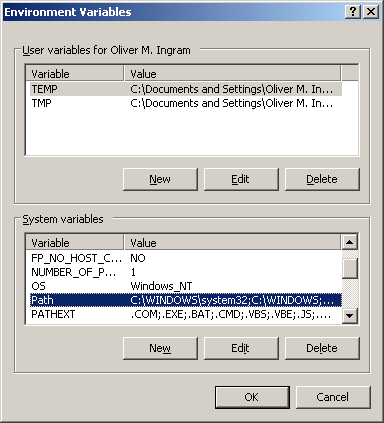
In the System variables section select the Path variable and click Edit to edit it.
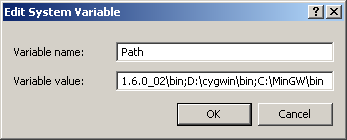
Add ;[MinGW directory]\bin to the end of the variable value. For example, if MinGW was installed in directory C:\MinGW, move the cursor to the end of the variable value and type ;C:\MinGW\bin.
Click OK to update the variable.